Features

A direct route from one photo to a useful color comparison.

Local Hair Color keeps the workflow focused: choose a photo, preview a color, adjust the effect, fix the selected hair when necessary, compare, and save a new copy.
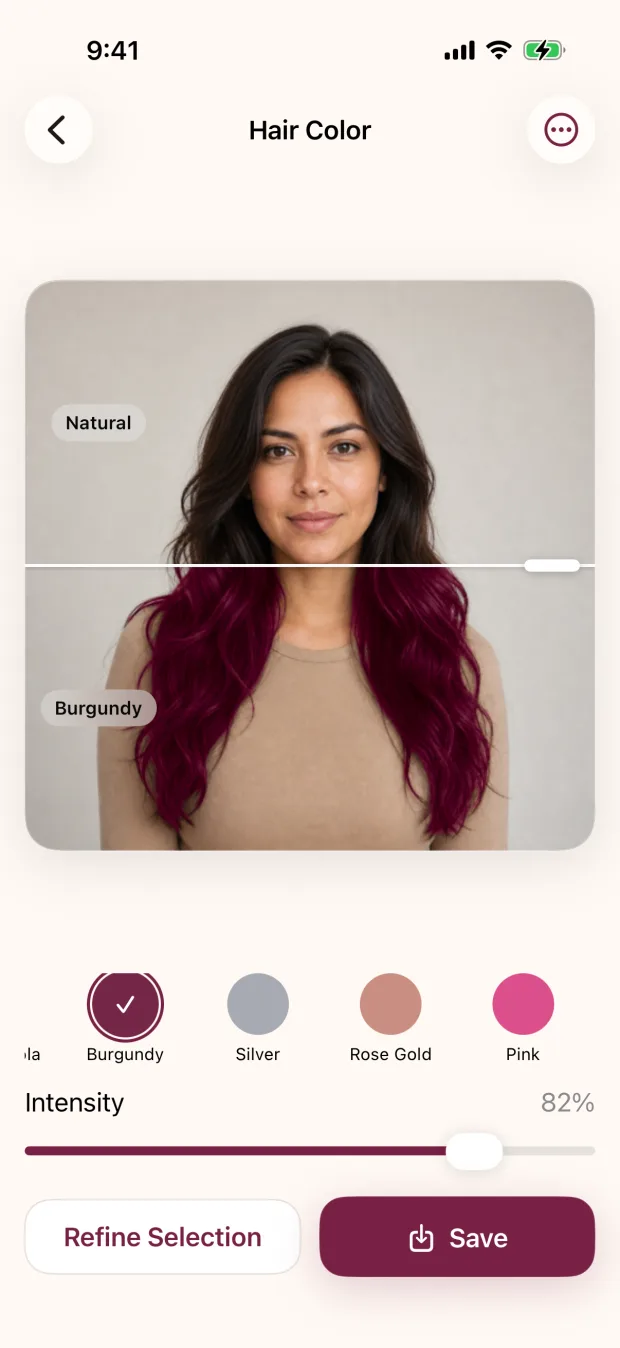
Burgundy hair color comparison in the iPhone editor

Automatic starting point

Select the hair once, then explore.

A bundled on-device model creates an initial hair selection for the photo. The editor reuses that selection while you change shades and intensity, so each preview does not start a new processing job.
  • 1
    One selected photoThe system picker limits the app to the image you choose.
  • 2
    Cached editing workflowExplore colors without repeatedly sending or re-segmenting the image.
  • 3
    Cancellation is normalReplace the photo or leave the editor without creating a saved document.
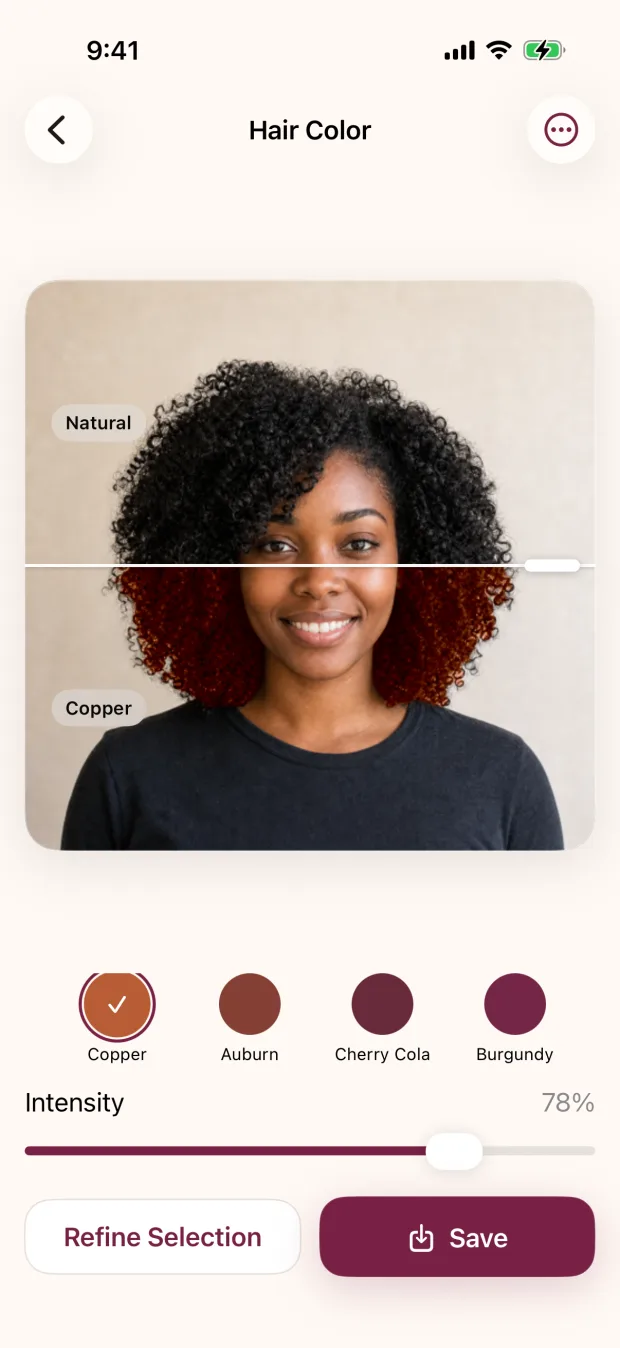
Copper hair color preview and intensity slider on iPhone

Color controls

Natural shades, bold directions, and a custom picker.

Start with curated choices when you want a quick comparison. Open the custom controls when you already have a hue in mind. Use the intensity slider to keep more or less of the original color visible.

  • Natural paletteBlonde, brunette, copper, auburn, burgundy, silver, and related shades.
  • Bold paletteRose gold, pink, blue, and other clearly interpretive color directions.
  • Any custom colorApple’s native color controls provide grid, spectrum, and slider views.

Compare honestly

Keep the source image one gesture away.

Turn on Compare when you need the reference. Drag the divider to examine the original and preview in the same frame, then turn it off when you want an unobstructed result.

Original reference

See the unedited source without leaving the editor.

Same framing

Compare without changing crop, pose, expression, or lighting.

Adjust intensity

Use the reference to decide whether the preview is overpowering the photo.

Save only when useful

Export a new image; the source asset remains unchanged.
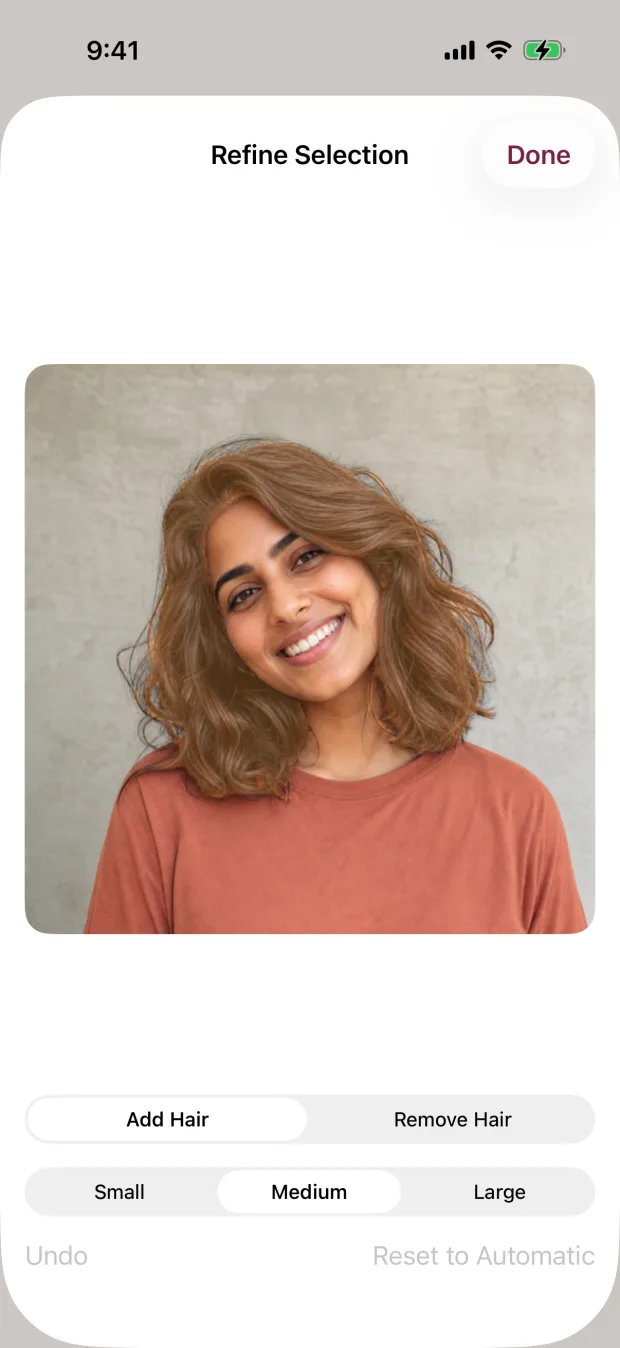
Manual Add Hair and Remove Hair controls with three brush sizes

Manual refinement

Automatic does not have to mean uncorrectable.

Add missed hair, remove spill from nearby areas, choose a brush size, and undo mistakes. Reset to Automatic discards the correction strokes while preserving the model’s original selection.
  • +
    Additive strokesRecover sections that should receive the color effect.
  • Subtractive strokesProtect skin, clothing, accessories, and background.
  • 3
    Three brush sizesUse a smaller brush around the hairline and a larger brush for broad areas.
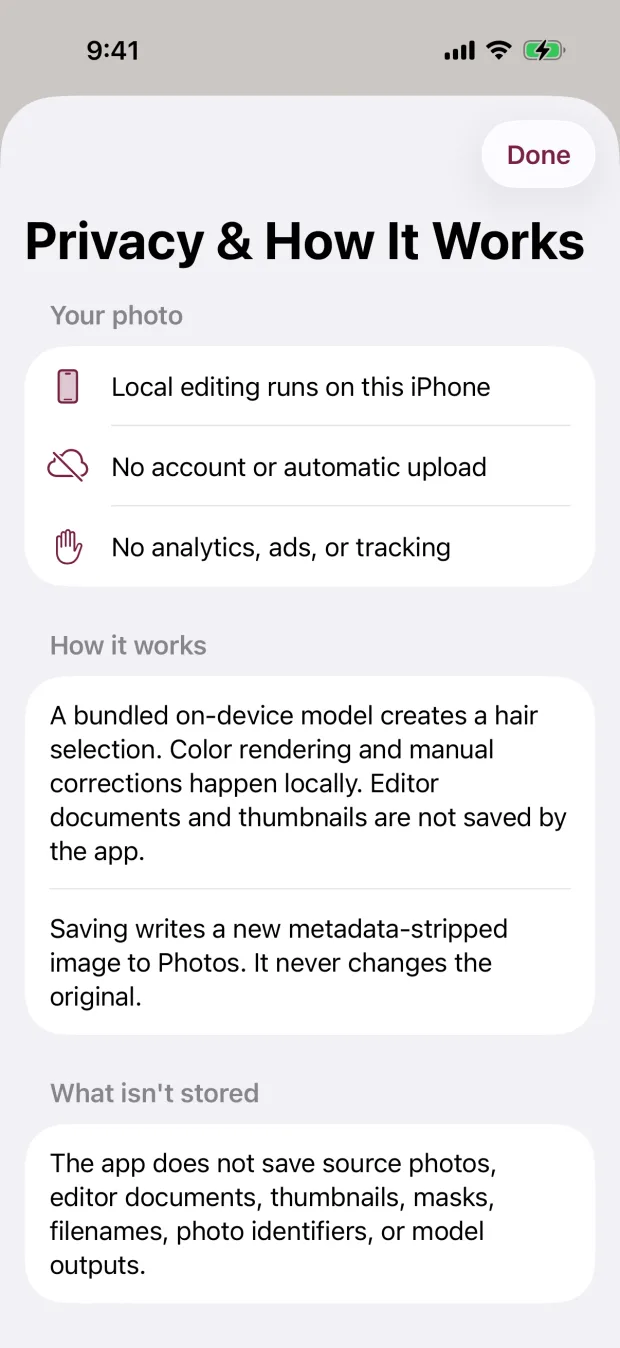
Privacy and How It Works screen explaining local editing

Privacy and export

No account, photo server, or editor archive.

The app does not persist source photos, masks, thumbnails, filenames, dimensions, photo identifiers, or editor documents. Saving creates a new image with unrelated source metadata removed.

  • Local photo processingHair selection, color rendering, corrections, and export stay on device.
  • Narrow Photos accessSelect through the system picker and request Add Photos only when saving.
  • Original preservedThe app never overwrites the source asset.

Before you start

Use a clear photo and expect to refine difficult edges.

Backlighting, flyaways, headwear, translucent hair, several people, and low contrast can all make an automatic selection harder.

Choose a better photo